What can he do for you?

Mouseless Computing Made Easy

Experience true mouseless computing with KB Master. Replace all mouse operations with intuitive keyboard shortcuts, eliminate wrist pain from prolonged mouse usage, and achieve ergonomic computing perfection.

View Guide

KB Master - Use a keyboard instead of a mouse to avoid wrist pain | Product Hunt

🚀 Download 👆

Why Choose Mouseless Computing with KB Master?

True Mouseless Experience

KB Master enables complete mouseless computing with intuitive keyboard shortcuts that perfectly simulate all mouse actions, letting you work entirely hands-free for maximum efficiency.

  • Intuitive Shortcut Keys: Easy to remember and use, enhancing efficiency.
  • Comprehensive Simulation: Perfectly performs clicking, dragging, scrolling, and right-click actions.
  • Customizable: Set shortcuts according to personal preferences.
Health and Comfort.

KB Master reduces wrist strain through keyboard operation, preventing mouse-related injuries and maintaining your health.

  • Prevent Mouse-Related Injuries: Reduces strain on wrists and fingers.
  • Enhance Comfort: Using the keyboard with both hands is more comfortable.
  • Protect Wrist Health: Prevents repetitive strain injuries to the wrist.

The Power of Mouseless Computing

Discover why thousands are switching to mouseless computing with KB Master. Experience the freedom of controlling your entire computer through keyboard shortcuts, eliminating mouse dependency forever.

🚀 Enhanced Productivity

Mouseless workflows keep your hands on the keyboard, reducing context switching and boosting your efficiency by up to 30%.

💪 Wrist Health Protection

Prevent RSI and wrist pain with ergonomic mouseless computing. Keep your hands in a natural typing position.

🎯 Precision Control

Achieve pixel-perfect mouse control through keyboard shortcuts. Navigate with surgical precision without touching a mouse.

🔧 Customizable Experience

Tailor your mouseless setup with customizable shortcuts and modes that match your workflow perfectly.

Your Mouseless Computing Guide

Key Description
`I/K/J/L` Move the mouse cursor
`1/2/3` Move the mouse pointer to the center of the specified screen, with a maximum support of three screens
`U/O` Scroll up/down
`Y/P` Scroll left/right
`N` Click the left mouse button
`M` Click the right mouse button
`B` Click and hold the left mouse button, release by clicking again
`F` Switch between fast and slow moving speed
`Esc/Space` Disable KB Master, when the space used to disable KB Master is pressed, it will not have other side effects (such as generating a space character)

Screen Division

Grid Mode

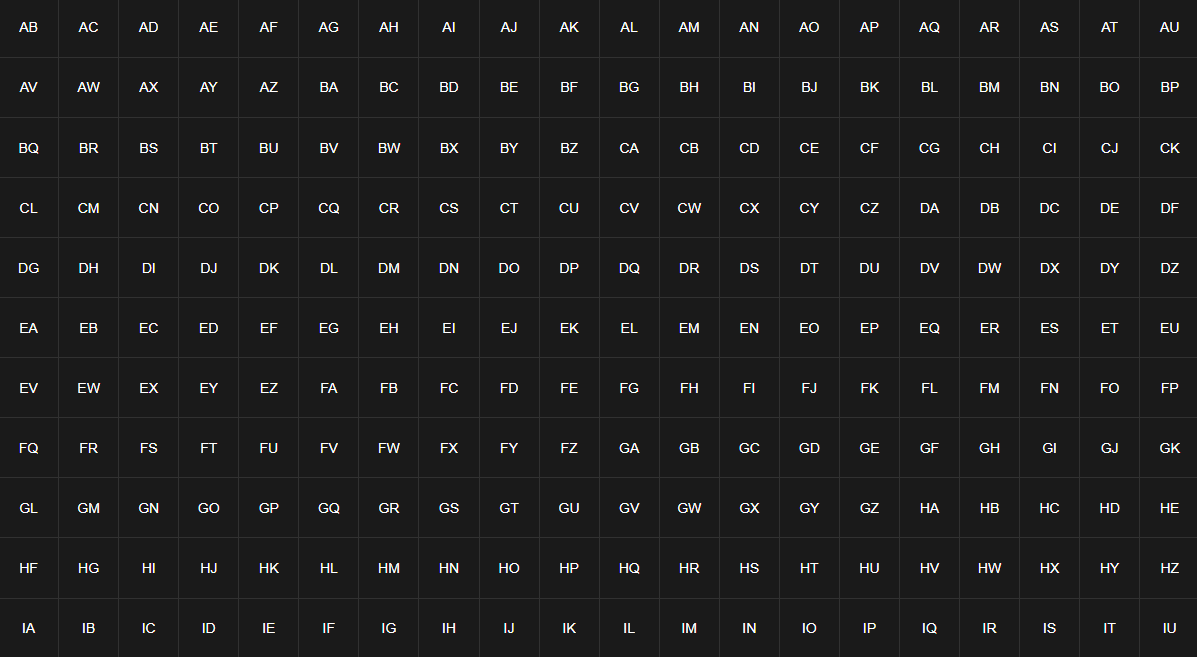
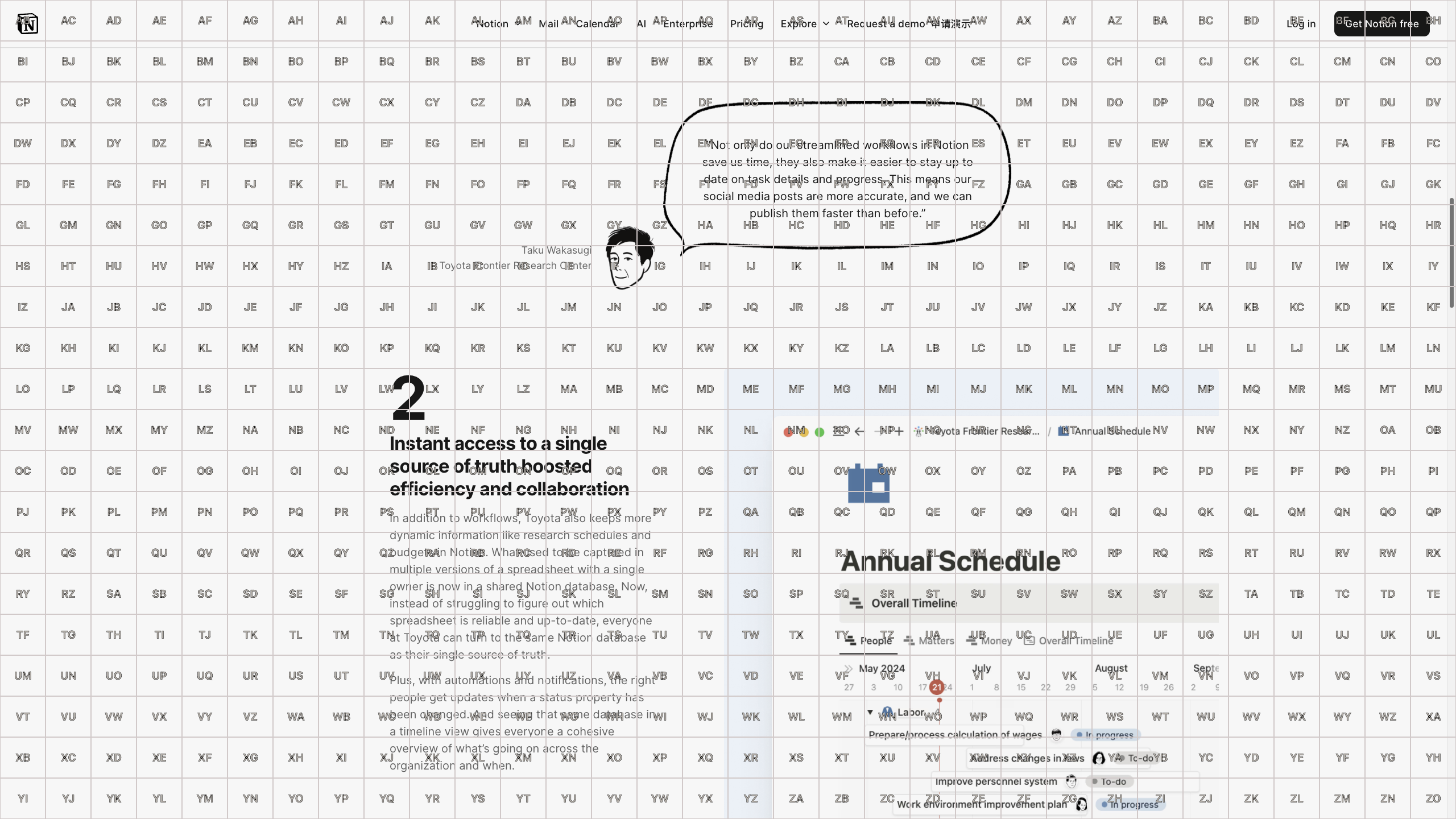
By overlaying a grid with configurable size on the entire screen, you can move the mouse to the center of any grid cell by pressing the corresponding two-key combination shown in that cell.
Grid Mode

In real websites, you can configure the color to your preference.
Grid Mode

Area Mode

Maybe you find it difficult to quickly find any two combinations of keys on the keyboard, this mode does not require you to be very familiar with the keyboard keys.

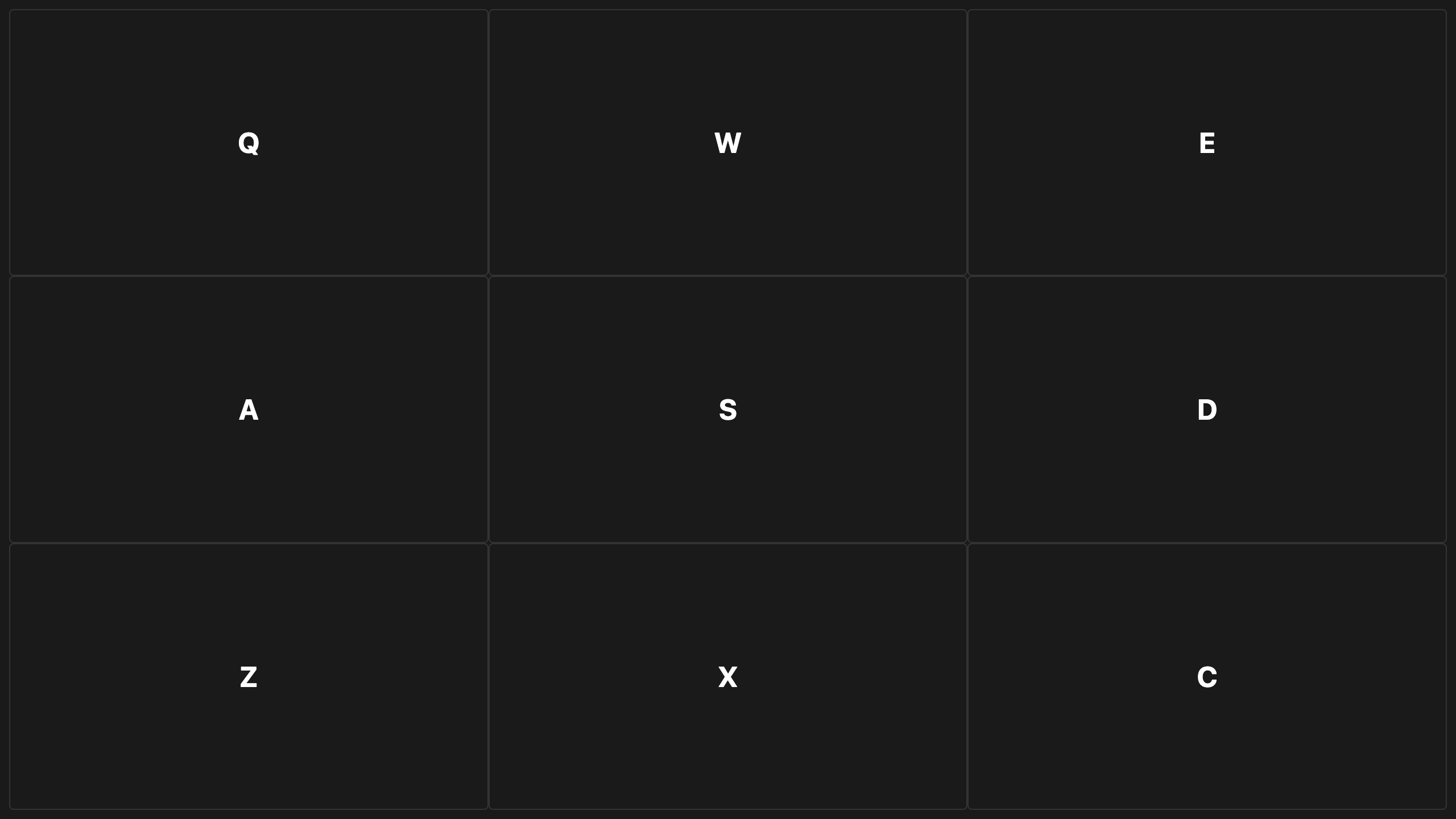
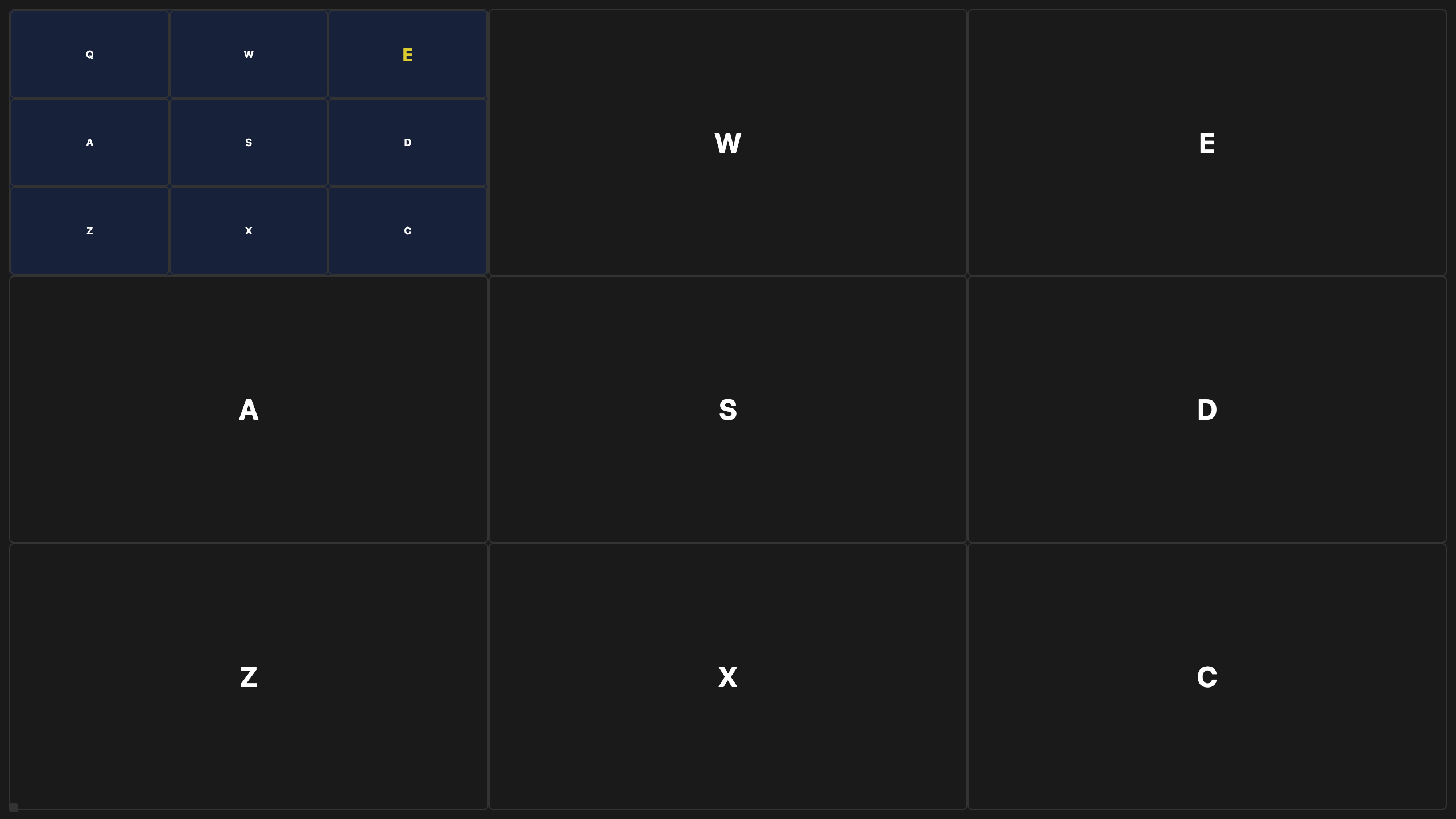
We divide the screen into 9 areas. After activation, pressing the corresponding keys (`Q/W/E/A/S/D/Z/X/C`) can quickly move the mouse to the specified area.

Screen Division

By pressing Q + E, quickly move to the highlighted area, allowing you to more quickly locate the element you need to access.

Screen Division 2

Try selecting your preferred mode as the default mode, grid mode is more professional and efficient, while area mode is simpler and more regular.

Pricing

Lifetime
  • At most five devices.
  • For all the current and future features.
  • Free 14-Day Trial.
$40 / Forever
$20 / Forever

Discount Code

C9JQ67H9KY

Valid until Mar 31, 2026

Donwload For MacOS