Your Mouseless Computing Guide
| Key |
Description |
| `I/K/J/L` |
Move the mouse cursor |
| `1/2/3` |
Move the mouse pointer to the center of the specified screen,
with a maximum support of three screens
|
| `U/O` |
Scroll up/down |
| `Y/P` |
Scroll left/right |
| `N` |
Click the left mouse button |
| `M` |
Click the right mouse button |
| `B` |
Click and hold the left mouse button, release by clicking again
|
| `F` |
Switch between fast and slow moving speed
|
| `Esc/Space` |
Disable KB Master, when the space used to disable KB Master is
pressed, it will not have other side effects (such as generating
a space character)
|
Screen Division
Grid Mode
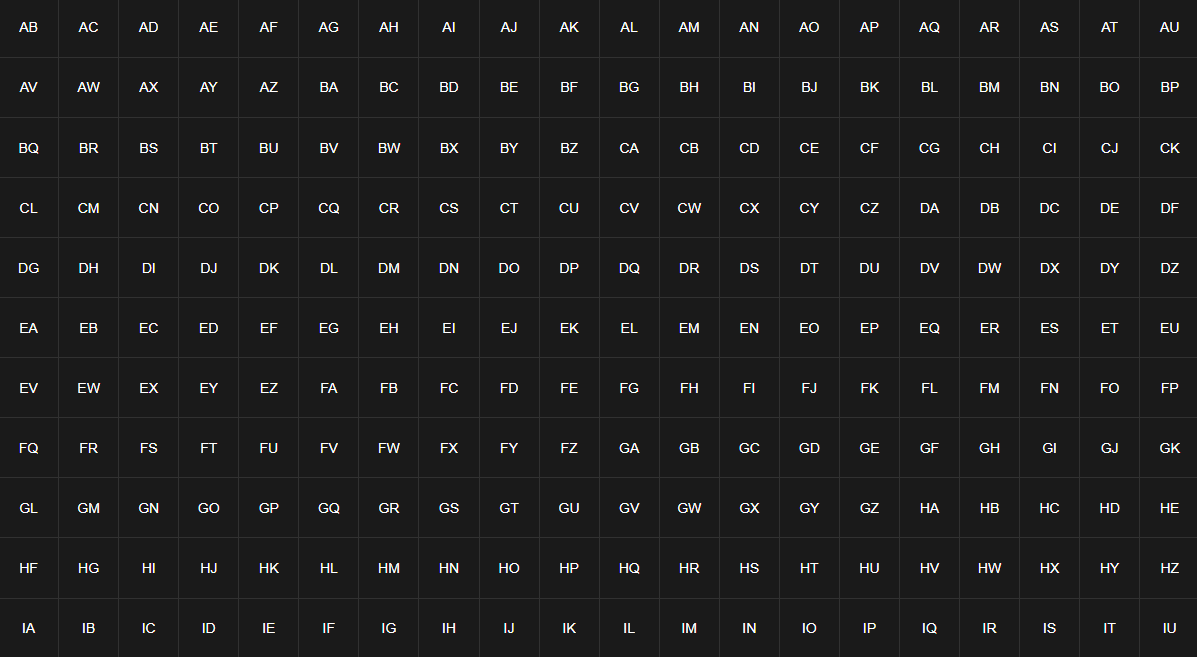
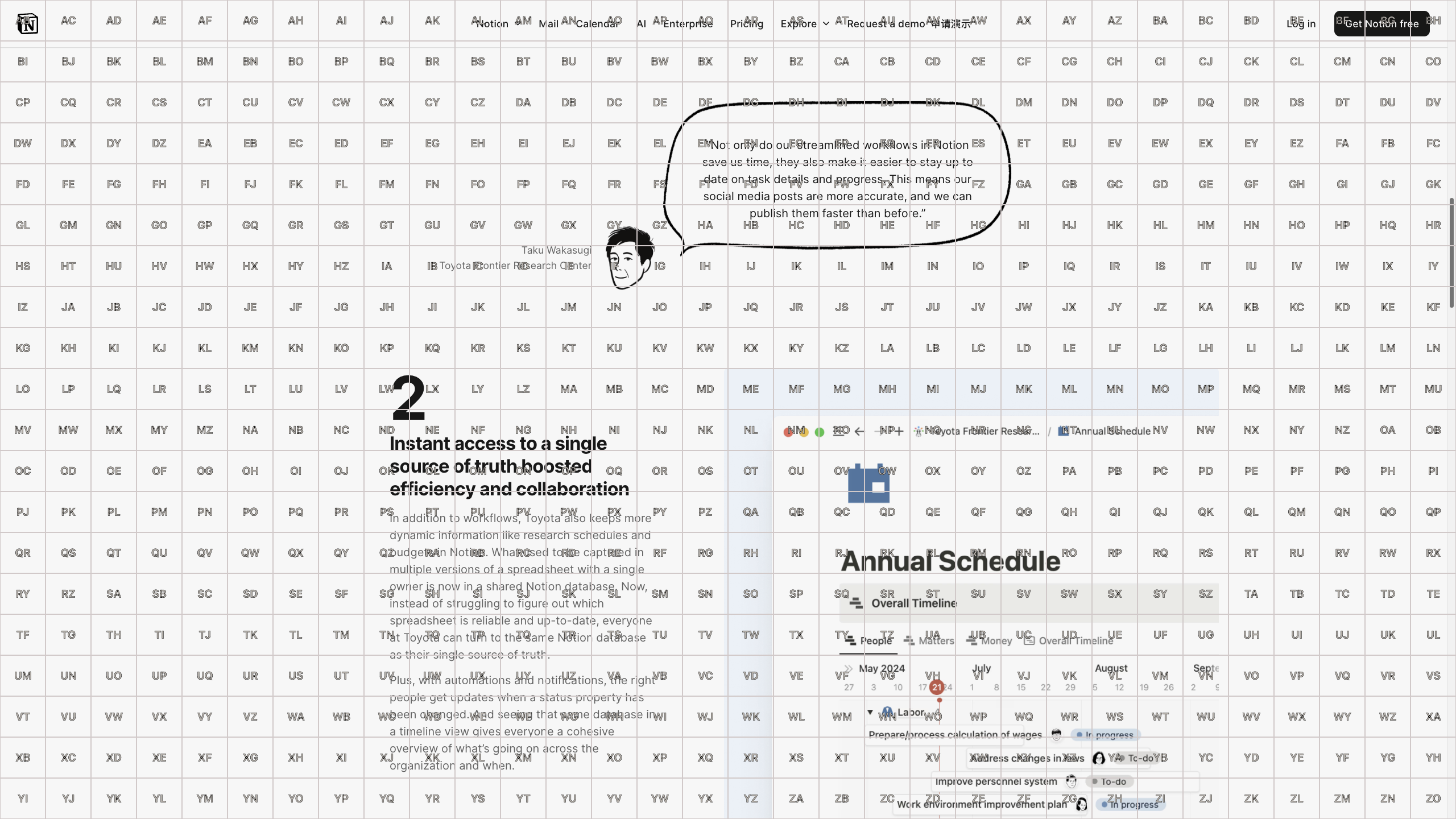
By overlaying a grid with configurable size on the entire screen, you
can move the mouse to the center of any grid cell by pressing the
corresponding two-key combination shown in that cell.
In real websites, you can configure the color to your preference.
Area Mode
Maybe you find it difficult to quickly find any two combinations of
keys on the keyboard, this mode does not require you to be very
familiar with the keyboard keys.
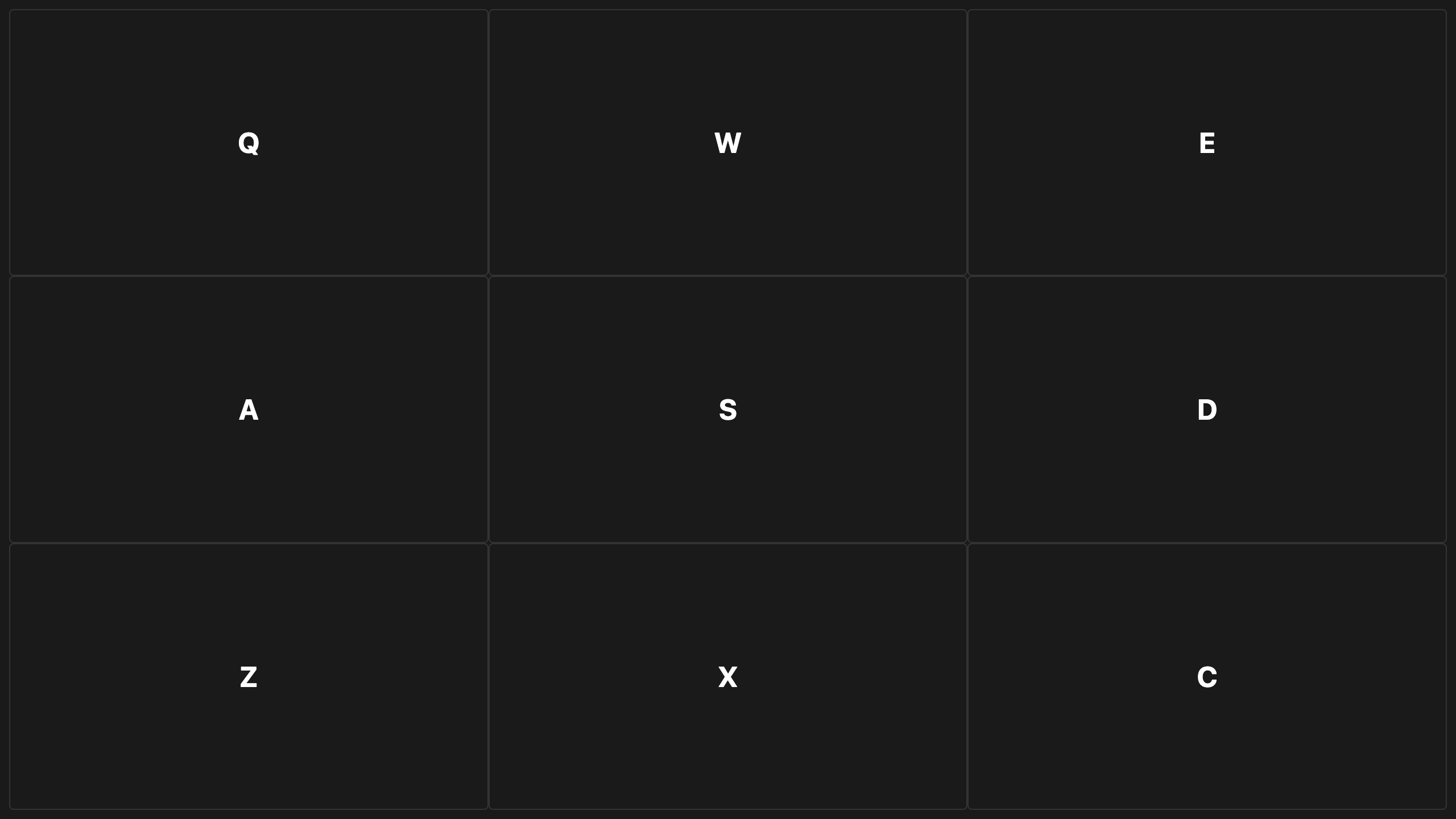
We divide the screen into 9 areas. After activation, pressing the
corresponding keys (`Q/W/E/A/S/D/Z/X/C`) can quickly move the mouse to
the specified area.
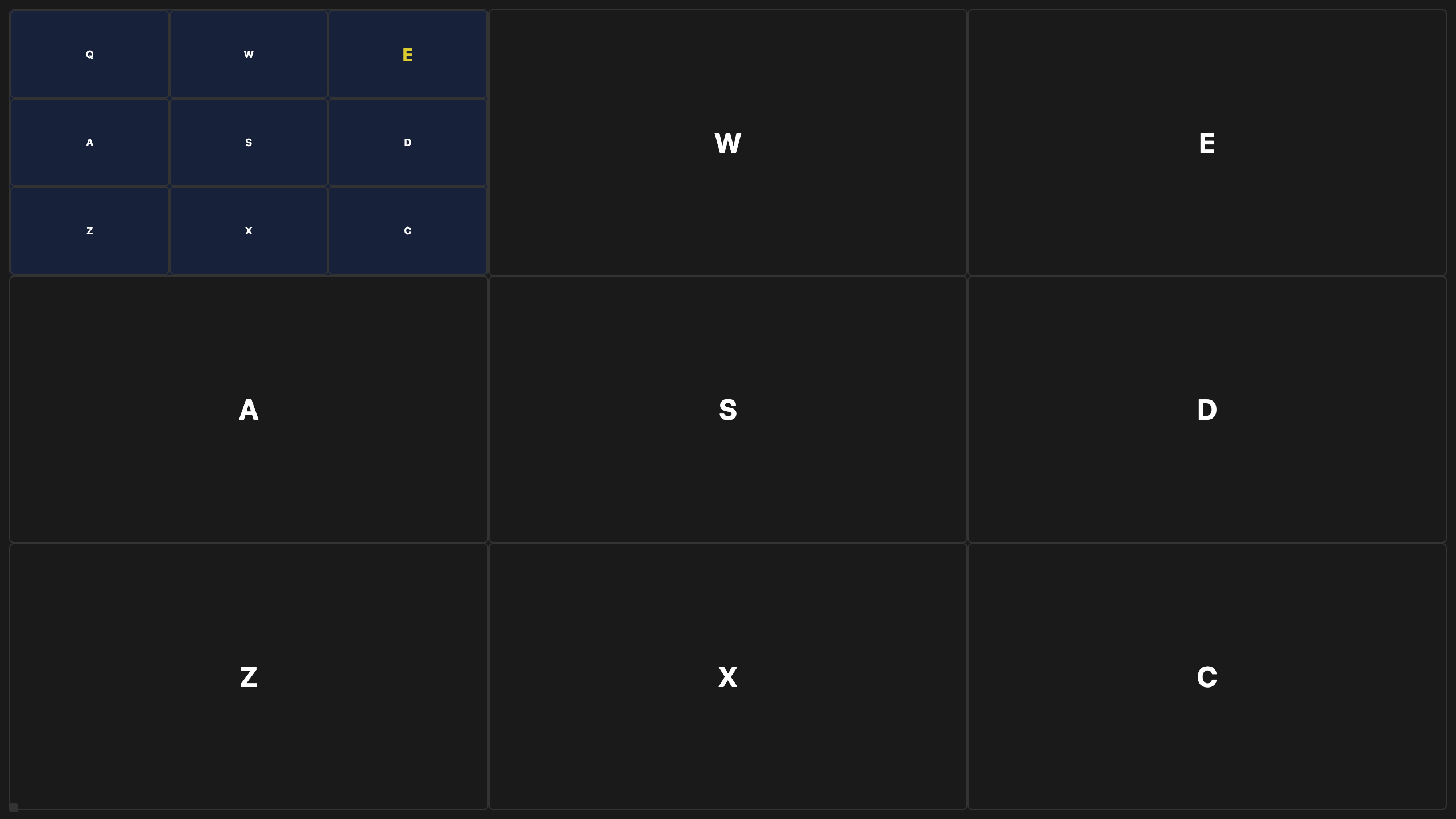
By pressing Q + E, quickly move to the highlighted area, allowing you
to more quickly locate the element you need to access.
Try selecting your preferred mode as the default mode, grid mode is
more professional and efficient, while area mode is simpler and more
regular.